
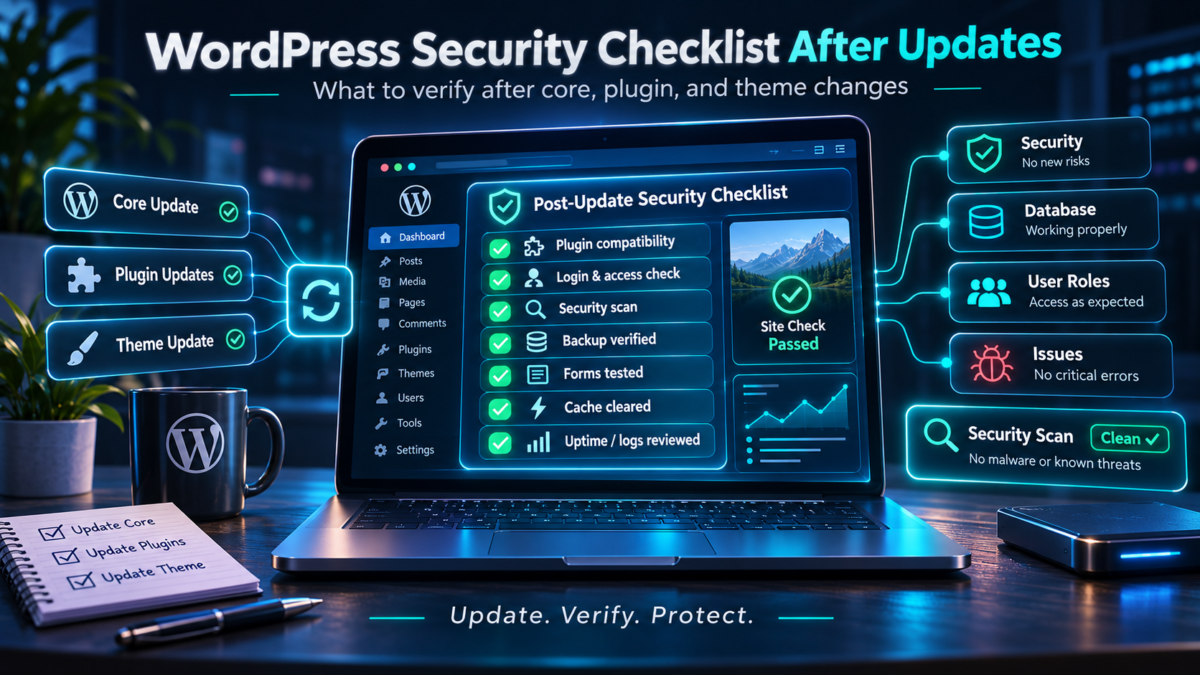
Your WordPress dashboard reports that everything is up to date. The plugins are current, the theme has no pending updates, and the website looks normal.
Is it secure?
Not necessarily. An update replaces vulnerable software; it does not establish whether an attacker gained access before the fix, whether an unexpected administrator account exists, or whether a compromised integration is still running. Equally, an outdated component is a risk factor, not proof that a site has been hacked.
A useful WordPress security checklist must distinguish three questions:
- Is the software current? Check WordPress, PHP, themes, plugins and other dependencies.
- Are important security boundaries configured correctly? Review privileges, credentials, integrations and server access.
- Is there evidence of a previous or ongoing compromise? Examine unexpected changes, access logs, unknown users and content.
Those questions have become especially timely following the October 2026 PHP and WordPress security releases—and with WordPress 7.2 approaching.
Why the October 2026 security updates matter
On October 21, 2026, the PHP project published security updates for PHP 8.2 through 8.5 addressing two critical vulnerabilities, CVE-2026-109618 and CVE-2026-109619. The official announcements identify the possibility of unauthenticated remote code execution and urge affected installations to update. The released fixes included PHP 8.2.35, 8.3.36, 8.4.27 and 8.5.12. These are PHP vulnerabilities, not WordPress-specific flaws. See the PHP project’s October 2026 security announcements and WordPress’s PHP security advisory.
On October 28, 2026, WordPress published version 7.1.4, a security release addressing multiple issues, including a weakness in the core upgrade process and several cross-site scripting and permission-related problems. WordPress recommended updating promptly. Read the official WordPress 7.1.4 announcement.
These were different problems in different layers of a typical website. Updating WordPress does not patch PHP. Updating PHP does not replace vulnerable plugins. And neither operation, by itself, investigates whether the site was previously compromised.
For an otherwise healthy site, do not postpone an available security fix simply because a new major WordPress version is on the calendar. If you already suspect an active compromise, however, coordinate remediation with evidence preservation and incident-response procedures before making uncontrolled changes.
What a successful update actually proves
A completed update is useful evidence that a particular software package was installed successfully. It is not a full security assessment.
Consider a few scenarios:
- An attacker obtained administrator access before a vulnerability was patched and added another privileged account.
- A malicious file was planted in a theme, a must-use plugin or a WordPress drop-in.
- An external service retained an application credential that no longer needs to exist.
- A legitimate integration began serving unexpected JavaScript because its own infrastructure was compromised.
The patched vulnerability may no longer be exploitable, while a previously established access path remains. These possibilities should be investigated when there is a reason for concern—not assumed to be present on every website.
A practical security review therefore examines both software versions and the state of the running system.
1. Verify the PHP version and hosting environment
Start in WordPress → Tools → Site Health → Info → Server. Record the PHP version actually serving the website. The PHP version shown in a terminal or hosting dashboard can differ from the version handling web requests, particularly on servers running multiple PHP configurations. WordPress Site Health documentation.
Ask your hosting provider three specific questions:
- Which PHP branch and security patch level handles this domain?
- Have the October 21, 2026 security fixes been applied, including any vendor-maintained backports?
- Is the PHP branch still within its security-support period?
Version strings require context. Some hosting distributions maintain patched builds without changing to the same package version published on php.net. Conversely, a visible version number alone cannot prove that a particular server is fully configured and protected.
Another deadline is approaching: PHP 8.2 reaches end of life on December 31, 2026, according to the PHP project’s support schedule. If your site still depends on PHP 8.2, plan a tested migration to a supported branch. Check your plugins, themes and custom code on staging before switching the production runtime. PHP supported versions.
If you administer the server, the review should also include filesystem permissions, web-server configuration, process isolation, remote access and supported operating-system packages. The official WordPress hardening guide is useful background, but these are not problems that a WordPress plugin can reliably assess on its own.
2. Inventory plugins, themes and code that does not appear in the usual lists
Open Dashboard → Plugins and review both active and inactive plugins. Check the active theme, installed inactive themes, custom snippets and any code managed outside the standard WordPress update system.
For each component, ask:
- Do we know why it is installed and who maintains it?
- Is it compatible with our WordPress and PHP versions?
- Does it receive security fixes and have a trustworthy update source?
- Does it have administrator-level capabilities, access to credentials or the ability to execute code?
- Can we remove it safely if the website no longer needs it?
A plugin is not unsafe merely because it is old. The concern is unsupported or poorly understood functionality that cannot be maintained or verified. This is one reason old plugins and feature-heavy themes can become WordPress technical debt.
Do not overlook WordPress drop-ins and must-use plugins
Some important WordPress components are not ordinary plugins with an Activate/Deactivate button. Examples include:
wp-content/mu-plugins/— must-use plugins loaded independently of the regular activation workflow.wp-content/advanced-cache.php— an early-loading page-cache drop-in whenWP_CACHEis enabled.wp-content/object-cache.php— the persistent object-cache drop-in, which can be loaded independently of theWP_CACHEsetting.
These are legitimate WordPress mechanisms, not inherently suspicious files. But they need to be included in an investigation because simply deactivating a visible caching plugin may not remove or explain all executable code at those paths. WordPress configuration and caching documentation.
3. Review administrators, credentials and remote access
Go to Users → All Users and verify every account with an administrator or similarly privileged role. Compare the list with the people and services that should have access today—not only those that needed access last year.
Review, where applicable:
- Unexpected users or changes in roles.
- Strong, unique passwords and multi-factor authentication for privileged accounts.
- WordPress Application Passwords and integrations that use them.
- Hosting-panel accounts, SFTP/SSH access, deployment credentials and database users.
- Remote site-management services, automation tools and former contractors’ access.
Do not assume an administrative security plugin can substitute for a correct permission model. A WordPress nonce helps protect against certain forged requests; it does not grant permission or prove that the user is authorized to perform an action. Custom code still needs the appropriate capability checks and other validation.
A real developer conversation about the limits of security checks
In October 2026, I discussed these boundaries with WordPress developer Dan Knauss. His research prototype, Sudo, attempted to require fresh authentication before certain sensitive operations. Despite 1,663 passing tests, a fresh-context review—assisted by AI and checked against WordPress Core—identified seven ways around that extra password prompt.
The scope matters: those findings involved a user who already possessed an authenticated administrator session. They were not a way for an anonymous visitor or a low-privilege user to become an administrator, and they were not a vulnerability report against WordPress Core.
Dan later referred to our Bluesky exchange in his published analysis, “Sudo’s tests agreed with Sudo. WordPress didn’t.”, and linked to my earlier article, “AI-Generated WordPress Code: Why Passing Tests Is Not Enough.” The discussion also continued in the comments on his article.
The broader lesson is relevant to every security review: a protective feature can behave exactly as its tests expect while the tests miss an important assumption about the surrounding system. That is why independent verification of real permissions and behaviour matters more than a single green indicator.
4. Check file integrity—and understand what the result cannot prove
Unexpected file changes can be useful clues, but not every change is malicious. A legitimate update, cache system, generated configuration file or deployment process may also modify files.
Developers with a trusted WP-CLI environment can compare WordPress Core files against WordPress.org checksums:
wp core verify-checksumsAnd verify plugins distributed through WordPress.org where reference checksums are available:
wp plugin verify-checksums --allThese are inspection commands, not malware removal commands. Core checksum documentation · Plugin checksum documentation.
A successful comparison does not establish that your entire website is clean. It does not validate every custom theme, premium plugin, must-use plugin, database record, uploaded script or unknown file. On a suspected compromised host, plan how to collect evidence safely and avoid executing untrusted code unnecessarily; specialist help or analysis of a forensic copy may be appropriate.
Investigate unexplained changes through several signals together: checksums, source provenance, deployment records, filesystem metadata, access logs and the actual content of the file.
5. A real Reddit incident: why deleting one malicious plugin may not be enough
A recent discussion in r/PHP illustrates this distinction. In the thread “Site compromised, interesting implementation of a persistent virus”, the author described two compromised WordPress installations and reported malware that could re-create files and persist through several execution paths, including plugins, must-use plugins and cache drop-ins.
I asked whether the five sites under review shared filesystem permissions or were isolated under separate system users. The author replied that each site had its own system user, PHP-FPM and Apache process, with SELinux controls separating the environments. Two sites were affected; the author also reported that those two shared an external website-management relationship.
That exchange is useful precisely because it does not resolve the initial infection vector. The reported isolation makes a simple shared-filesystem explanation less convincing, but it does not establish which account, integration or vulnerable component was responsible. The shared contractor relationship is an observation, not evidence of wrongdoing or the cause of the incident.
The case is a community member’s technical account, not an independently reproduced forensic report. Its practical value is the investigation method:
- Identify all persistence mechanisms instead of removing only the most visible file.
- Examine identity, deployment and integration access alongside server isolation.
- Preserve relevant evidence before aggressive cleanup.
- Determine what can be rebuilt from trusted sources and which credentials must be rotated.
- Verify that the original entry path has been closed before declaring recovery complete.
A scanner reporting “clean” after deleting one suspicious plugin cannot answer all five questions.
6. Audit external JavaScript and other third-party dependencies
Your website can run the latest WordPress and PHP while loading scripts from outside its hosting environment: analytics, customer chat, scheduling widgets, video embeds, marketing tags or hosted components.
These integrations may be legitimate and necessary. The important questions are who provides them, when they load, what they can access and how you would respond if the provider changed or was compromised.
Use browser developer tools to review Network requests and script origins on representative pages. Compare what actually loads with the integrations your team believes are installed. Remove services you no longer use, restrict access to tag-management accounts, and consider appropriate technical controls such as a tested Content Security Policy where feasible.
External scripts also have a performance cost. Large or poorly scheduled JavaScript can delay interaction and hurt real-user responsiveness. See our explanation of WordPress Core Web Vitals and the difference between lab scores and field experience.
Security and performance are different disciplines, but both benefit from understanding what each dependency does and why it is present.
7. Look for warning signs in WordPress and Google Search Console
A site can appear normal to its owner while exposing unexpected behaviour to other users or search engines. Warning signs worth investigating include:
- An administrator account nobody recognizes.
- Unexplained redirects or visitors seeing different content from the owner.
- Spam pages, unfamiliar URLs or links appearing in search results.
- Unexpected PHP files in upload directories or unexplained changes to executable code.
- New scheduled tasks, integrations or outgoing connections without an owner.
- Alerts from a hosting provider, browser or Google Search Console.
Open Google Search Console → Security issues to review any detected problems. Google may report hacked content, malware or deceptive pages. The absence of a warning is useful context, not proof that a site has no security issues. Google’s Security issues report documentation.
Security problems can also become technical SEO problems: injected pages, redirects and inaccessible resources can alter what search engines discover and index. Our guide to technical SEO problems website owners often miss covers the underlying crawlability and indexing checks.
8. Confirm that backups and recovery procedures actually work
A backup file is not a recovery strategy until someone has tested how to restore it.
A useful recovery plan should identify:
- Which files, database tables and external configuration are backed up.
- Where backup copies are stored and who can access them.
- How far back clean recovery points may exist.
- How to restore into a separate, protected environment.
- How to check for the original vulnerability before reconnecting the restored system.
- Who can decide whether affected accounts, secrets or user sessions must be invalidated.
For routine maintenance, create a verified restore point before substantial updates. For a suspected compromise, avoid immediately overwriting the only potentially useful logs, files or database evidence with a restoration.
If an intrusion is suspected, involve your host or an incident-response specialist as appropriate. The sequence is usually to contain the risk, preserve evidence, assess access and persistence, recover from trustworthy components and then monitor for recurrence—not simply to erase suspicious filenames.
9. WordPress 7.2 is coming: prepare without postponing current fixes
As of November 3, 2026, the WordPress release team’s schedule targets December 8, 2026 for WordPress 7.2. The version is still in development; release dates and included features can change. Official WordPress 7.2 release schedule.
The 7.2 roadmap describes work on Application Password hardening, a proposed Secrets API, and exploration of a “sudo mode” that would request reauthentication for particularly sensitive administrative actions. The release has entered its beta-testing cycle, but these security items are roadmap initiatives, not guarantees that every capability will ship in the final release.
This discussion also connects to the Sudo research described earlier—but the experimental Sudo plugin and WordPress Core’s proposed work are distinct projects. One does not establish the outcome or security of the other.
Before a major WordPress upgrade
- Bring the current production site up to date with available security fixes.
- Prepare a restorable backup and a rollback plan.
- Test the upcoming WordPress version on staging—not production while it remains beta or release candidate.
- Check plugin, theme, authentication and API integrations.
- Verify forms, publishing, logins, media uploads, caching and critical customer journeys.
- Review server requirements and the PHP migration timetable.
After the upgrade
Confirm the installed version, inspect Site Health, test real workflows and review relevant logs. If the final release adds new credential or authentication controls, verify their behaviour with your actual integrations rather than assuming their names describe every protection they provide.
Do not delay the already available WordPress 7.1.4 or PHP security patches while waiting for WordPress 7.2. Emergency remediation and major-version compatibility testing are separate activities.
10. WordPress security checklist: what you can check now
This is a first-pass review, not a penetration test or a guarantee that no compromise exists. Some checks are quick; others require a developer, hosting support or access to records that a website owner may not have.
Initial checks for website owners
| Check | Where to look | Investigate if you find… |
|---|---|---|
| WordPress version | Dashboard → Updates | A pending security release or an unexplained update failure |
| PHP patch status | Tools → Site Health → Info → Server; hosting support | An unsupported branch or unconfirmed critical patches |
| Plugins and themes | Plugins; Appearance | Components no one recognizes or maintains |
| Privileged users | Users → All Users | Unexpected accounts or unexplained role changes |
| Backups | Hosting or backup system | No verified restore point or no documented restore procedure |
| Search security | Search Console → Security issues | Malware, hacked-content or deceptive-content warnings |
Checks for a developer or hosting provider
| Check | Where to look | Investigate if you find… |
|---|---|---|
| Remote integrations | Application Passwords, hosting and deployment tools | Credentials or services with no current owner |
| File integrity | Trusted WP-CLI environment, deployment records and file review | Unexplained changes or unrecognized executable code |
| External scripts | Browser DevTools → Network; tag-management inventory | Third-party origins no one can account for |
| Recovery readiness | Incident-response notes, logs, backup and access owners | No clear way to contain an incident or preserve evidence |
If an item raises suspicion, do not treat this checklist as a cleanup script. Document the observation, decide how urgent it is, and determine whether expert investigation is required.
Frequently asked questions
Can a WordPress site still be compromised after updating?
Yes, if access or malicious modifications were established before an issue was patched, or if a different unresolved weakness remains. This is a possibility to investigate when warranted—not evidence that every updated site has been breached.
Does installing a security plugin make WordPress secure?
A well-maintained security plugin can provide useful controls and monitoring, but it cannot independently guarantee the safety of server configuration, credentials, third-party providers or custom code.
How do I check which PHP version my WordPress site uses?
In WordPress, open Tools → Site Health → Info → Server. Confirm the patch status with your host when critical vulnerabilities or vendor backports are involved.
Can PageSpeed Insights tell me whether my site has been hacked?
No. PageSpeed Insights measures aspects of loading and user experience. It is not a security audit. Use security-specific evidence and tools for security questions.
How often should I review WordPress security?
Monitor security releases as they occur, review privileged access and important dependencies regularly, and perform a more thorough assessment after major changes, migrations, suspicious activity or an incident. The exact cadence depends on the site’s risk and business importance.
Security is a verification process, not an update button
Keeping WordPress, PHP and plugins patched is essential. But it addresses only part of the question.
A useful security review connects what changed, who has access, which code runs, what can be observed and how recovery would work if something went wrong. It also recognizes the limits of each check instead of turning a green status indicator into a promise.
The October 2026 releases make this a timely conversation. The approaching WordPress 7.2 release makes it a good moment to plan compatibility tests as well. But the principle will still matter after those version numbers become history:
An update changes the software. A security review evaluates the state of the system.
If you need help diagnosing an unusual WordPress installation, planning a safe PHP upgrade or recovering from a failed update or security incident, see SEO Expert’s WordPress repair and technical services.